


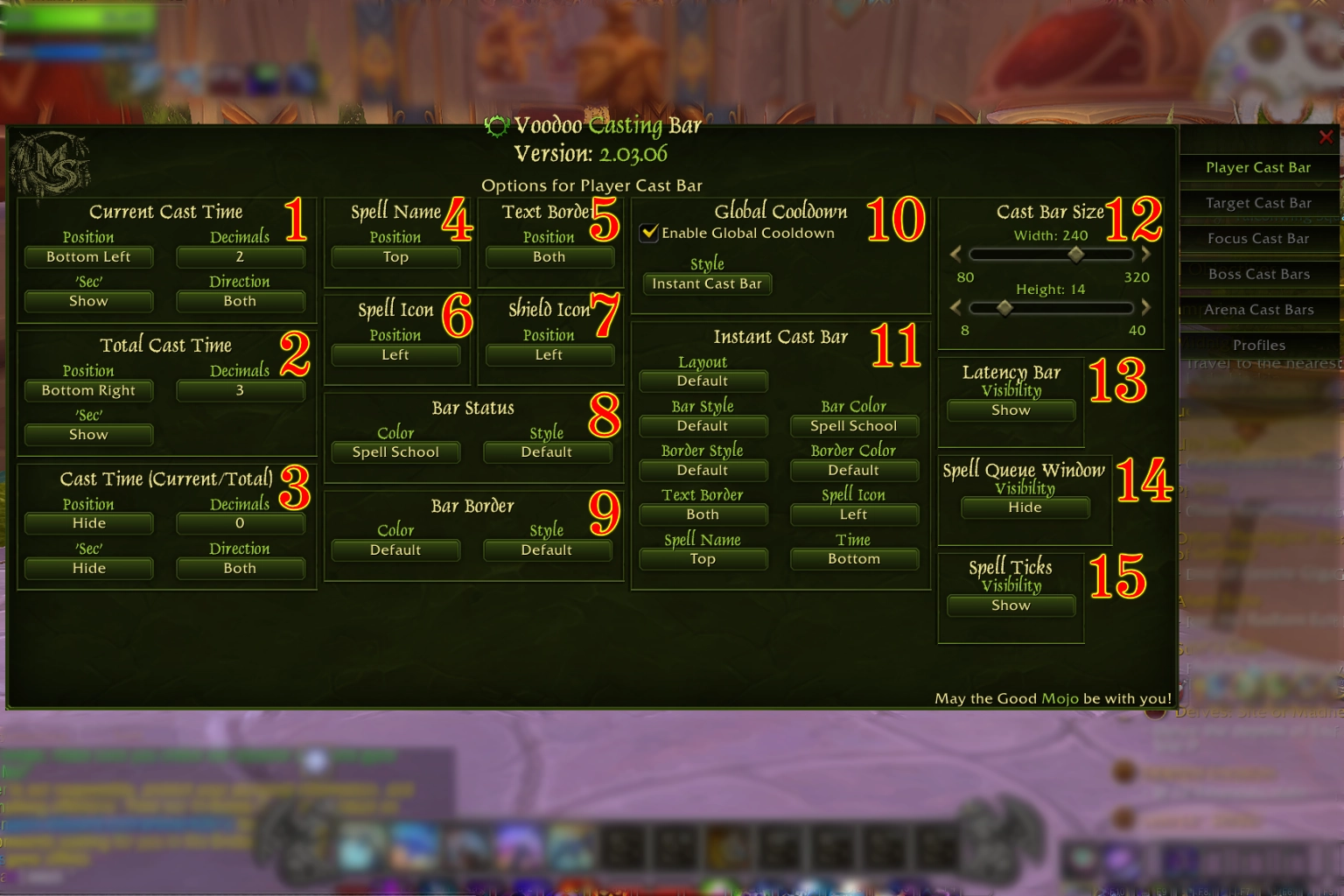
This page explains the available options in Voodoo Casting Bar, with detailed descriptions, screenshots, and examples.
Options Shared by All Cast Bars
The first nine options, as shown in the screenshots, are shared by the Player, Target, Focus, Boss, and Arena cast bars. Some settings may have different available choices depending on the cast bar.
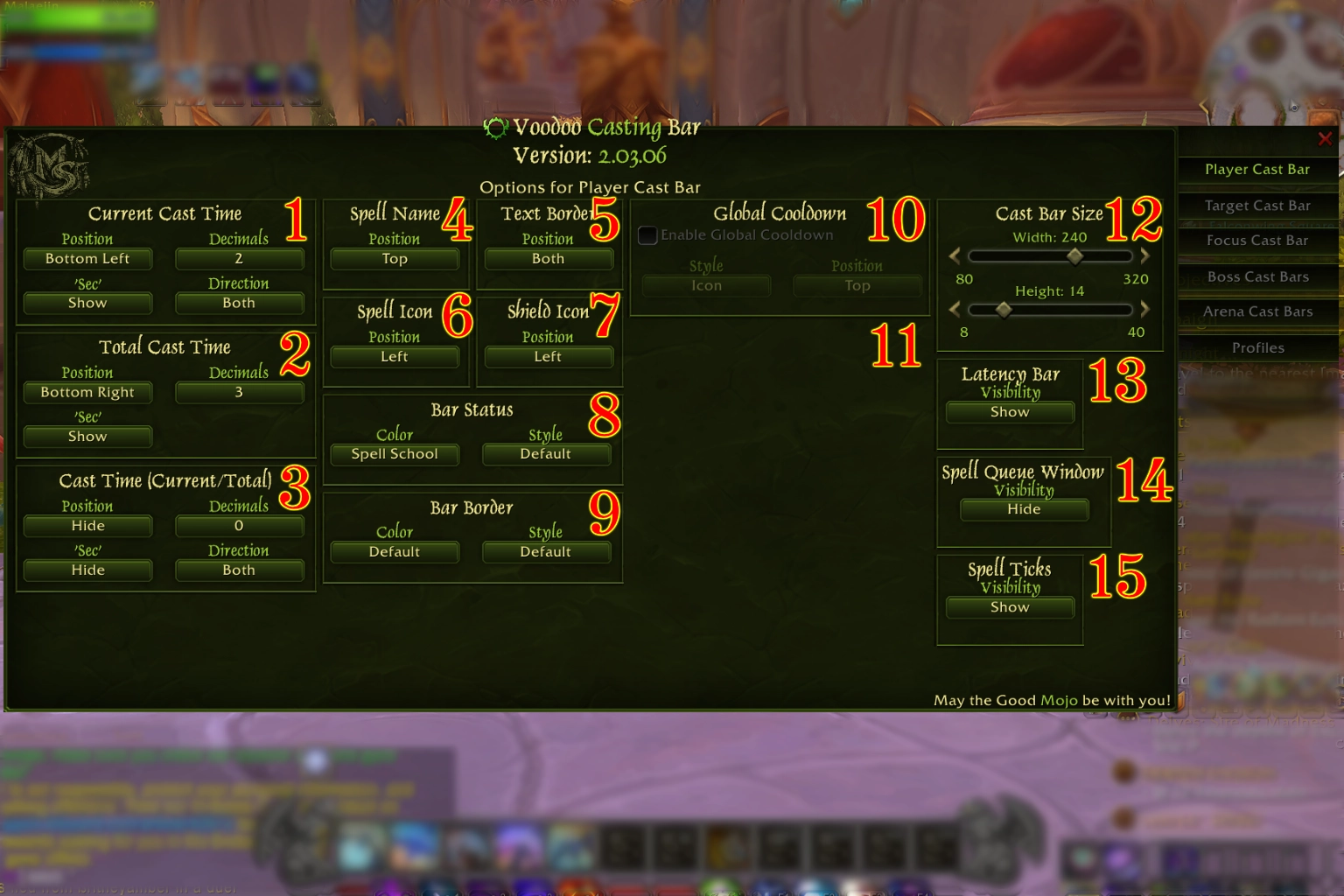
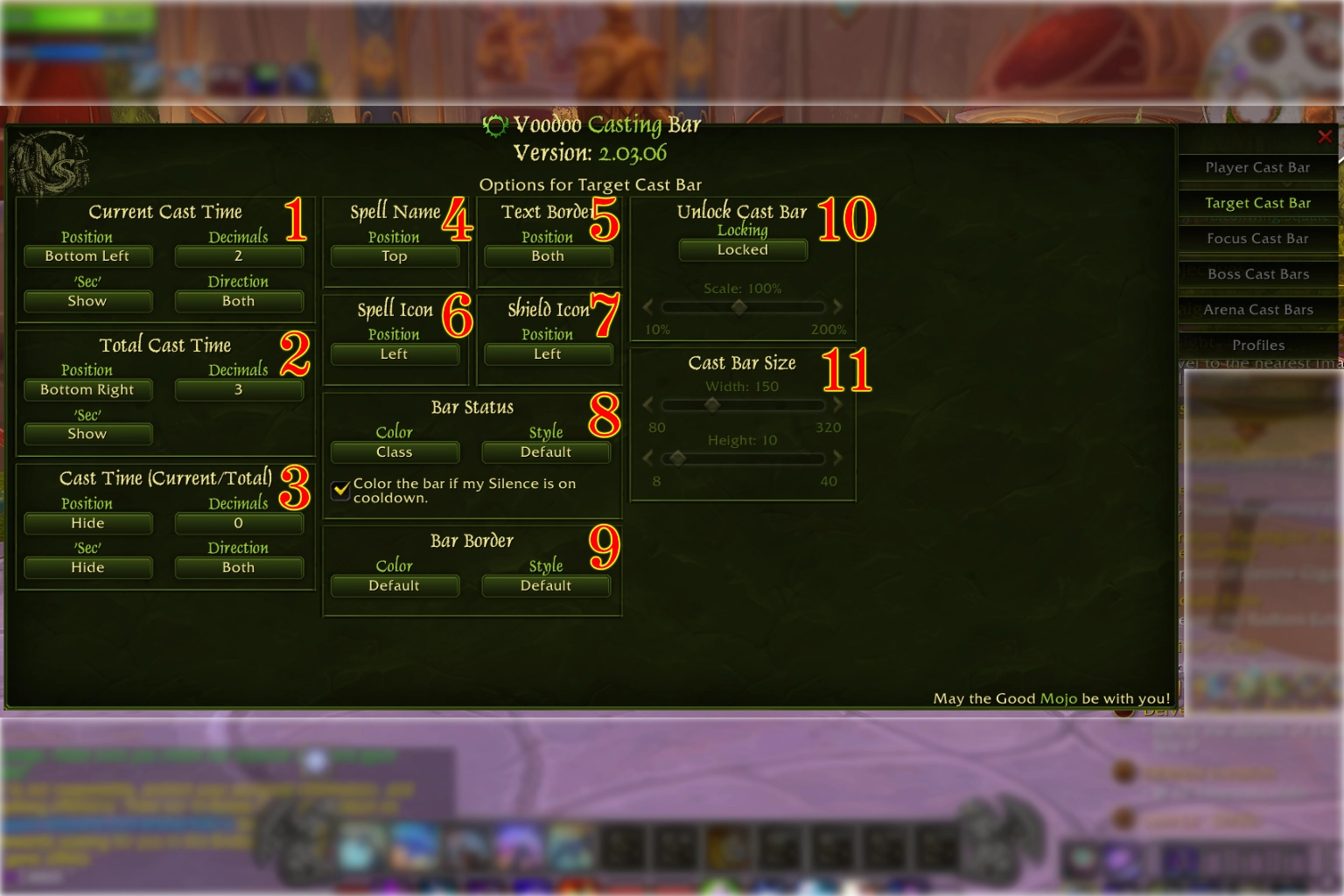
(1) Current Cast Time, (2) Total Cast Time, and (3) Cast Time (Current/Total)
Current Cast Time displays the elapsed time of the spell, Total Cast Time displays the total duration of the spell, and Cast Time (Current/Total) displays both the elapsed time and the total duration of the spell in a single timer, for example, `1.25/2.00`. All three timers have the following settings, except where noted.
🙜 Position 🙞
Determines where the timer appears on the cast bar.
⚬ Hide. Hides the timer.
⚬ Top Left. Places the timer in the top-left corner of the cast bar.
⚬ Left. Places the timer on the left side of the cast bar.
⚬ Bottom Left. Places the timer in the bottom-left corner of the cast bar.
⚬ Top. Places the timer above the cast bar.
⚬ Center. Places the timer in the center of the cast bar.
⚬ Bottom. Places the timer below the cast bar.
⚬ Top Right. Places the timer in the top-right corner of the cast bar.
⚬ Right. Places the timer on the right side of the cast bar.
⚬ Bottom Right. Places the timer in the bottom-right corner of the cast bar.
🙜 Decimals 🙞
Determines the number of decimal places displayed by the timer.
⚬ 0. Displays no decimal places.
⚬ 1. Displays one decimal place.
⚬ 2. Displays two decimal places.
⚬ 3. Displays three decimal places.
🙜 'Sec' 🙞
Determines whether the text 'sec' appears next to the timer.
⚬ Hide. Hides the text.
⚬ Show. Displays the text.
🙜 Direction 🙞
Determines whether the timer counts upward or downward. This setting is not available for (2) Total Cast Time.
⚬ Upward. The timer counts upward while casting or channeling.
⚬ Downward. The timer counts downward while casting or channeling.
⚬ Both. The timer counts upward while casting and downward while channeling.
(4) Spell Name
Displays the name of the spell being cast.
🙜 Position 🙞
Determines where the spell name appears on the cast bar.
⚬ Hide. Hides the spell name.
⚬ Top Left. Places the spell name in the top-left corner of the cast bar.
⚬ Left. Places the spell name on the left side of the cast bar.
⚬ Bottom Left. Places the spell name in the bottom-left corner of the cast bar.
⚬ Top. Places the spell name above the cast bar.
⚬ Center. Places the spell name in the center of the cast bar.
⚬ Bottom. Places the spell name below the cast bar.
⚬ Top Right. Places the spell name in the top-right corner of the cast bar.
⚬ Right. Places the spell name on the right side of the cast bar.
⚬ Bottom Right. Places the spell name in the bottom-right corner of the cast bar.
(5) Text Border
The Text Border consists of two separate borders: one positioned directly above the cast bar and the other directly below it.
🙜 Position 🙞
Determines which text borders are displayed.
⚬ Hide. Hides both text borders.
⚬ Top. Displays only the top text border.
⚬ Bottom. Displays only the bottom text border.
⚬ Both. Displays both text borders.
(6) Spell Icon and (7) Shield Icon
Spell Icon displays the icon of the spell being cast. Shield Icon appears when the spell cannot be interrupted. Both icons have the same positioning options, which can be configured independently.
🙜 Position 🙞
Determines where the selected icon appears.
⚬ Hide. Hides the icon.
⚬ Left. Displays the icon on the left side of the cast bar.
⚬ Right. Displays the icon on the right side of the cast bar.
⚬ Both. Displays the icon on both sides of the cast bar.
(8) Bar Status
Bar Status controls the color and texture of the cast bar's fill.
🙜 Color 🙞
Determines the color of the cast bar's fill.
⚬ Default. Uses the default color.
⚬ Class. Uses the color associated with the unit's class.
⚬ Faction. Uses the color associated with the unit's faction. This option is available only for the Player cast bar.
⚬ Spell School. Uses the color associated with the school of magic of the spell being cast. This option is available only for the Player cast bar.
🙜 Style 🙞
Determines the texture used for the cast bar's fill.
⚬ Default. Uses the default texture.
⚬ Jailer. Uses the Jailer texture.
(9) Bar Border
Bar Border controls the appearance of the cast bar's border and background.
🙜 Color 🙞
Determines the color of the border and background.
⚬ Default. Uses the default color.
⚬ Class. Uses the color associated with the unit's class.
⚬ Faction. Uses the color associated with the unit's faction. This option is available only for the Player cast bar.
🙜 Style 🙞
Determines the texture used for the border and background.
⚬ Default. Uses the default texture.
⚬ Jailer. Uses the Jailer texture.
Options Shared by four casting bars
The following options are available only for the Target, Focus, Boss, and Arena cast bars.
(10) Unlock Cast Bar
Controls whether the cast bar is attached to its unit frame or can be moved independently. It also provides an option to adjust the cast bar's scale when unlocked.
🙜 Locking 🙞
Determines whether the cast bar is locked or unlocked.
⚬ Locked. Attaches the cast bar to its unit frame and disables the Scale and Cast Bar Size settings.
⚬ Unlocked. Allows you to move the cast bar freely and enables the Scale and Cast Bar Size settings.
🙜 Important Notice 🙞
Changing this setting will reload the User Interface
🙜 Scale 🙞
Adjusts the scale of the cast bar, from 10% to 200%. This setting is available only when the cast bar is unlocked
(11) Cast Bar Size
Controls the dimensions of the cast bar.
⚬ Width. Adjusts the cast bar's width, from 80 to 320.
⚬ Height. Adjusts the cast bar's height, from 8 to 40.
These settings are available only when the cast bar is unlocked.
Options Exclusive to the Player Cast Bar
The following options are available only for the Player cast bar
(10) Global Cooldown
The Global Cooldown option allows Voodoo Casting Bar to display the global cooldown triggered by certain abilities.
🙜 Enable Global Cooldown 🙞
⚬ Enabled. Displays the global cooldown and activates the Style, Position, and (11) settings.
⚬ Disabled. Hides the global cooldown and deactivates the Style, Position, and (11) settings.
🙜 Style 🙞
Determines how the global cooldown is displayed.
⚬ Icon. Displays the global cooldown as an icon and activates the (11) Global Cooldown Icon settings.
⚬ Bar. Displays the global cooldown as a bar and activates the (11) Global Cooldown Bar settings.
⚬ Instant Cast Bar. Displays the global cooldown using a separate cast bar for instant-cast spells. This activates the (11) Instant Cast Bar settings and disables the Position setting.
🙜 Position 🙞
Determines where the global cooldown indicator appears relative to the Player cast bar. This setting is unavailable when the Instant Cast Bar style is selected.
⚬ Top. Places the indicator above the cast bar.
⚬ Bottom. Places the indicator below the cast bar.
⚬ Left. Places the indicator to the left of the cast bar.
⚬ Right. Places the indicator to the right of the cast bar.
(11) Global Cooldown Icon
These settings become available when **Icon** is selected as the global cooldown style.
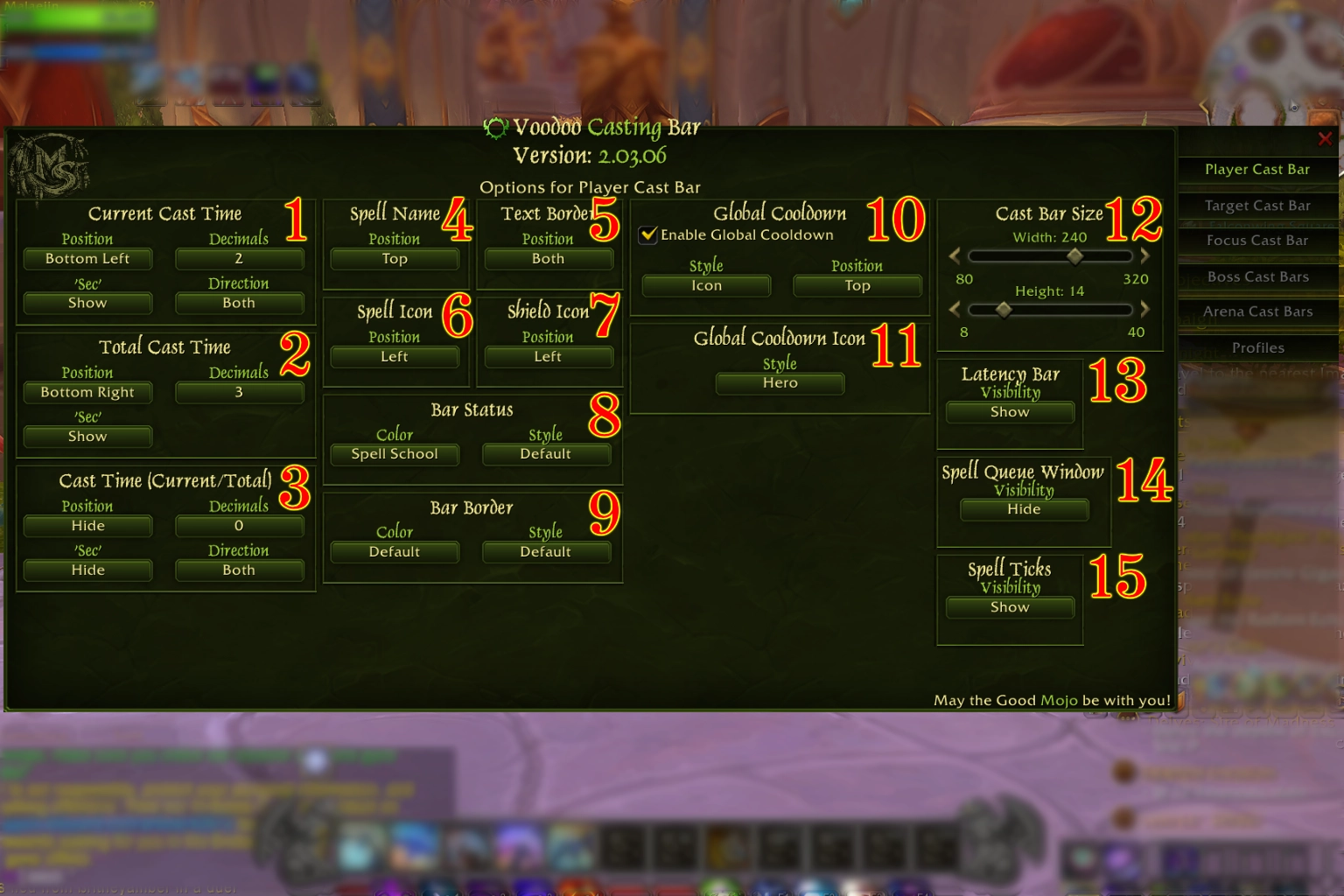
🙜 Style 🙞
Determines which icon is displayed during the global cooldown.
⚬ Class Square. Displays the player's class icon in a square shape.
⚬ Class Round. Displays the player's class icon in a round shape.
⚬ Hero. Displays the icon associated with the player's selected Hero Talent specialization.
⚬ Faction Round. Displays the player's faction icon in a round shape.
⚬ Faction Old. Displays the older version of the player's faction icon.
⚬ Faction New. Displays the newer version of the player's faction icon.
⚬ Spell Icon. Displays the icon of the ability that triggered the Global Cooldown.
(11) Global Cooldown Bar
These settings become available when **Bar** is selected as the global cooldown style.
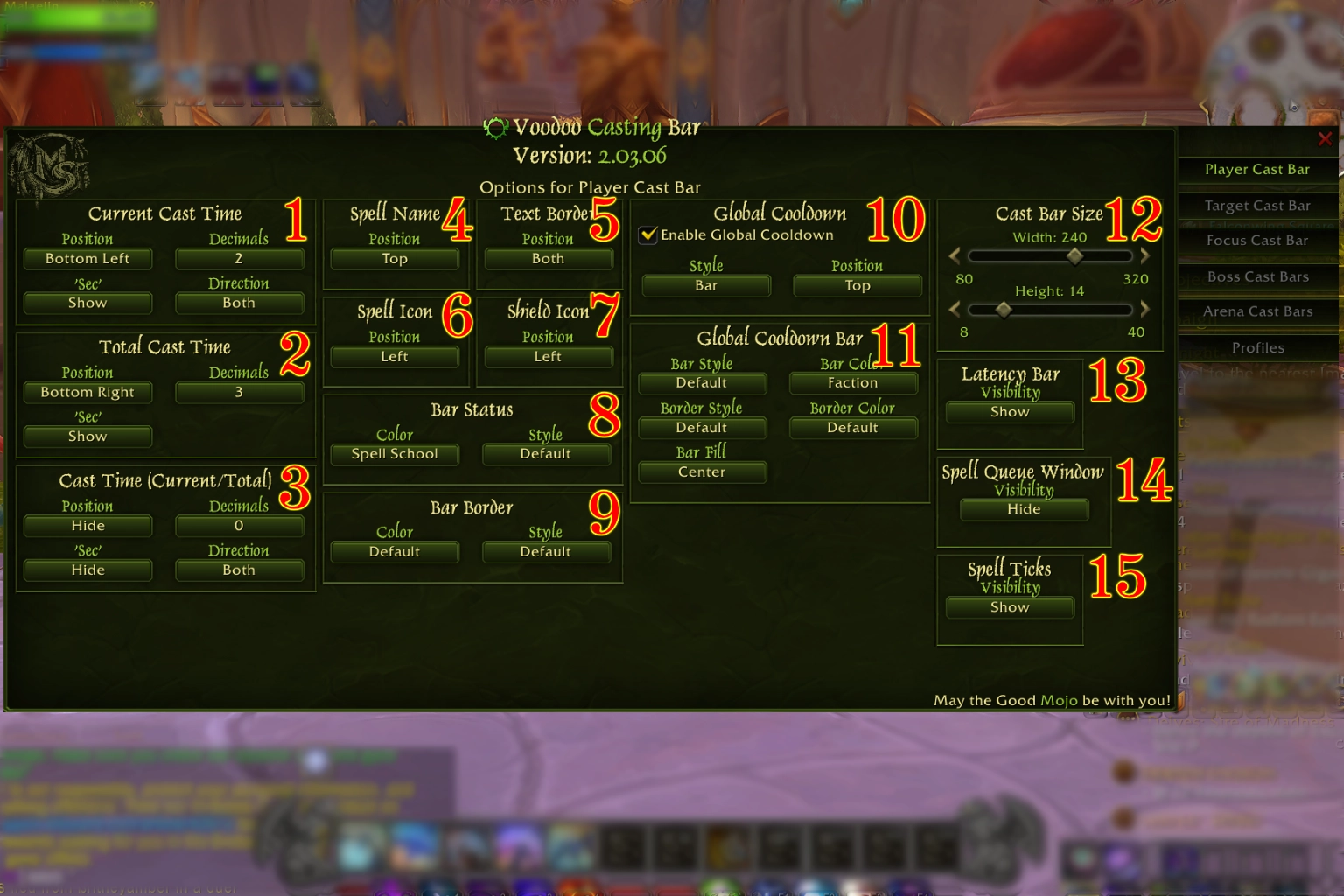
🙜 Bar Style 🙞
Determines the filling texture of the global cooldown bar.
⚬ Default. Uses the default texture.
⚬ Jailer. Uses the Jailer texture.
🙜 Bar Color 🙞
Determines the color of the global cooldown bar's fill.
⚬ Default. Uses the default color.
⚬ Class. Uses the player's class color.
⚬ Faction. Uses the player's faction color.
🙜 Border Style 🙞
Determines the texture of the global cooldown bar's border and background.
⚬ Default. Uses the default texture.
⚬ Jailer. Uses the Jailer texture.
🙜 Border Color 🙞
Determines the color of the global cooldown bar's border and background.
⚬ Default. Uses the default color.
⚬ Class. Uses the player's class color.
⚬ Faction. Uses the player's faction color.
🙜 Bar Fill 🙞
Determines the direction in which the global cooldown bar fills as its displayed value increases.
⚬ Standard. The bar fills from left to right.
⚬ Reversed. The bar fills from right to left.
⚬ Center. The bar fills outward from the center toward both ends.
(11) Instant Cast Bar
These settings become available when **Instant Cast Bar** is selected as the global cooldown style.
🙜 Layout 🙞
Determines which layout the Instant Cast Bar uses.
⚬ Default. The Instant Cast Bar follows the Player Cast Bar setting.
⚬ Custom. You need to set it up manually.
🙜 Bar Style 🙞
Determines the filling texture of the Instant Cast Bar.
⚬ Default. Uses the default texture.
⚬ Jailer. Uses the Jailer texture.
🙜 Bar Color 🙞
Determines the color of the Instant Cast Bar's fill.
⚬ Default. Uses the default color.
⚬ Class. Uses the player's class color.
⚬ Faction. Uses the player's faction color.
⚬ Faction. Uses the color associated with the school of magic of the spell that triggered the Global Cooldown.
🙜 Border Style 🙞
Determines the texture of the Instant Cast Bar's border and background.
⚬ Default. Uses the default texture.
⚬ Jailer. Uses the Jailer texture.
🙜 Border Color 🙞
Determines the color of the Instant Cast Bar's border and background.
⚬ Default. Uses the default color.
⚬ Class. Uses the player's class color.
⚬ Faction. Uses the player's faction color.
🙜 Text Border 🙞
Controls the two text borders positioned directly above and below the Instant Cast Bar.
⚬ Hide. Hides both text borders.
⚬ Top. Displays only the top text border.
⚬ Bottom. Displays only the bottom text border.
⚬ Both. Displays both text borders.
🙜 Spell Icon 🙞
Controls the position of the spell icon on the Instant Cast Bar.
⚬ Hide. Hides the spell icon.
⚬ Left. Displays the spell icon on the left side of the bar.
⚬ Right. Displays the spell icon on the right side of the bar.
⚬ Both. Displays the spell icon on both sides of the bar.
🙜 Spell Name 🙞
Determines where the name of the spell appears on the Instant Cast Bar.
⚬ Hide. Hides the spell name.
⚬ Top Left. Places the spell name in the top-left corner of the bar.
⚬ Left. Places the spell name on the left side of the bar.
⚬ Bottom Left. Places the spell name in the bottom-left corner of the bar.
⚬ Top. Places the spell name above the bar.
⚬ Center. Places the spell name in the center of the bar.
⚬ Bottom. Places the spell name below the bar.
⚬ Top Right. Places the spell name in the top-right corner of the bar.
⚬ Right. Places the spell name on the right side of the bar.
⚬ Bottom Right. Places the spell name in the bottom-right corner of the bar.
🙜 Time 🙞
Displays the remaining time of the spell's global cooldown, determines where the remaining time appears on the Instant Cast Bar.
⚬ Hide. Hides the remaining time.
⚬ Top Left. Places the remaining time in the top-left corner of the bar.
⚬ Left. Places the remaining time on the left side of the bar.
⚬ Bottom Left. Places the remaining time in the bottom-left corner of the bar.
⚬ Top. Places the remaining time above the bar.
⚬ Center. Places the remaining time in the center of the bar.
⚬ Bottom. Places the remaining time below the bar.
⚬ Top Right. Places the remaining time in the top-right corner of the bar.
⚬ Right. Places the remaining time on the right side of the bar.
⚬ Bottom Right. Places the remaining time in the bottom-right corner of the bar.
(12) Cast Bar Size
Controls the dimensions of the Player cast bar.
⚬ Width. Adjusts the cast bar's width, from **80** to **320**.
⚬ Height. Adjusts the cast bar's height, from **8** to **40**.
(13) Latency Bar
The Latency Bar is a red section of the cast bar that represents latency while casting or channeling a spell.
🙜 Visibility 🙞
⚬ Show. Displays the Latency Bar.
⚬ Hide. Hides the Latency Bar.
(14) Spell Queue Window
The Spell Queue Window is a green section of the cast bar that represents the period during which you can queue your next spell before the current one finishes.
🙜 Visibility 🙞
⚬ Show. Displays the Spell Queue Window.
⚬ Hide. Hides the Spell Queue Window.
(15) Spell Ticks
Spell Ticks are markers on the cast bar that indicate the individual ticks of a channeled spell.
🙜 Visibility 🙞
⚬ Show. Displays the Spell Ticks.
⚬ Hide. Hides the Spell Ticks.
 Subscripe to Ko-Fi
 Subscripe to Patreon
 Donate through PayPal
 Buy Me a Mojo
 Share it on Bluesky
 Share it on Threads
 Share it on X